

How It Works
When password protection is enabled, anyone visiting your published design will see a password prompt. They will need to enter the correct password to view the site. This is useful for:- Sharing work-in-progress designs with specific clients
- Restricting access to internal prototypes
- Protecting sensitive content before a public launch
How to Enable Password Protection
1
Click the Share button
Click the Share button at the top of the editor, then open the Privacy section in the Publish modal.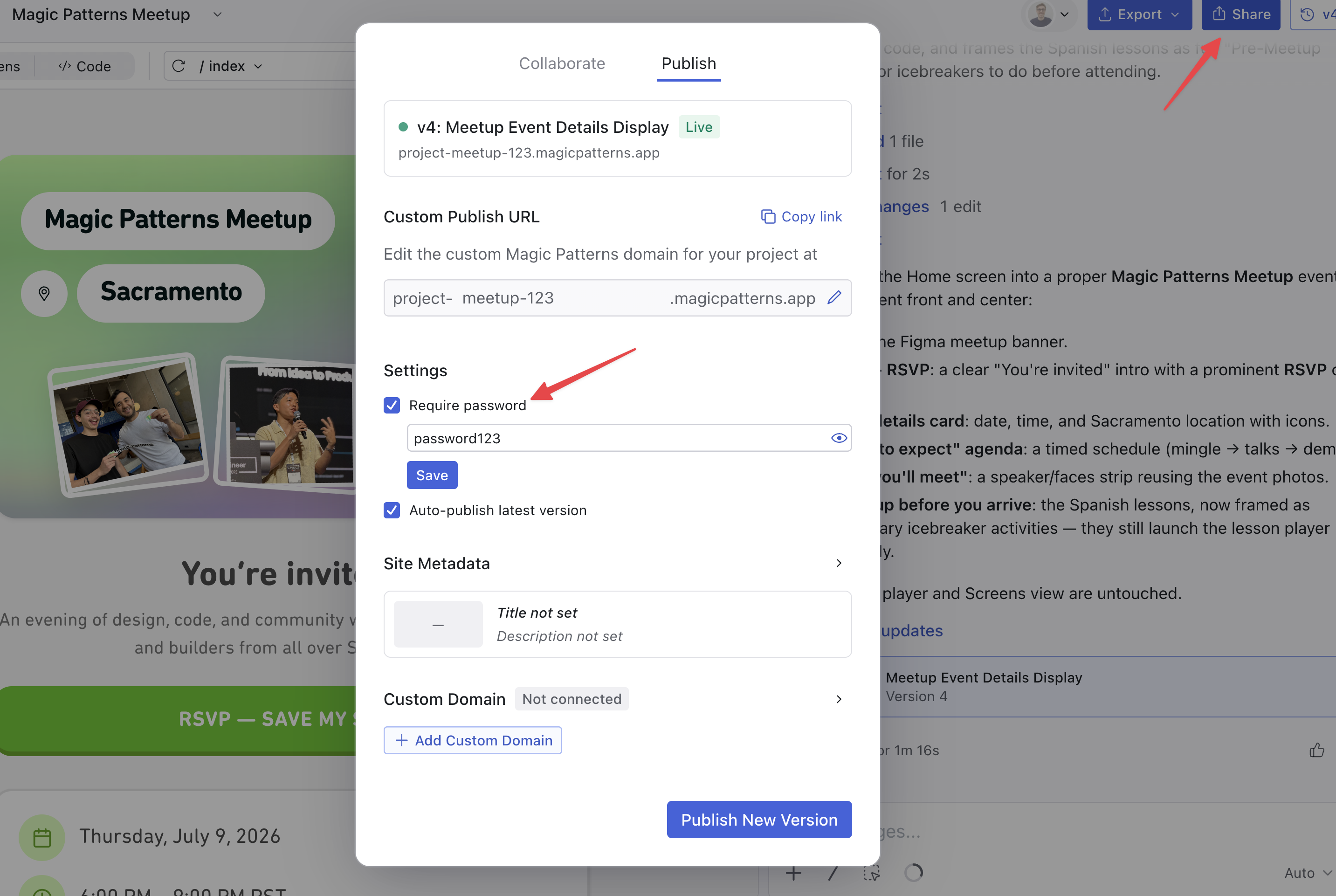
2
Enable password protection
Toggle on Require password for design preview. A password input field will appear.
3
Set your password
Enter your desired password and click Save. Your published design is now protected.
Removing Password Protection
To remove password protection:- Open the Publish panel and go to Privacy
- Toggle off Require password for design preview
Notes
- Password protection applies to the published version of your design
- The password is not visible after it’s been set—you’ll need to set a new one if you forget it
- Password protection works with both Custom Publish URLs and Custom Domains