

We only need read access. Magic Patterns reads the repository to ground your
designs in your code; it does not write to your repo. Connecting a repo here
attaches it to a single design, it does not import a
Design System.
Connect your GitHub account
The first time you connect a repo, you’ll be prompted to connect your GitHub account so Magic Patterns can list your repositories and browse their folders. Once connected, your account stays linked for future designs.Attach a repository
1
Open the GitHub connector
In the editor prompt bar, open the + menu and choose Connect Github.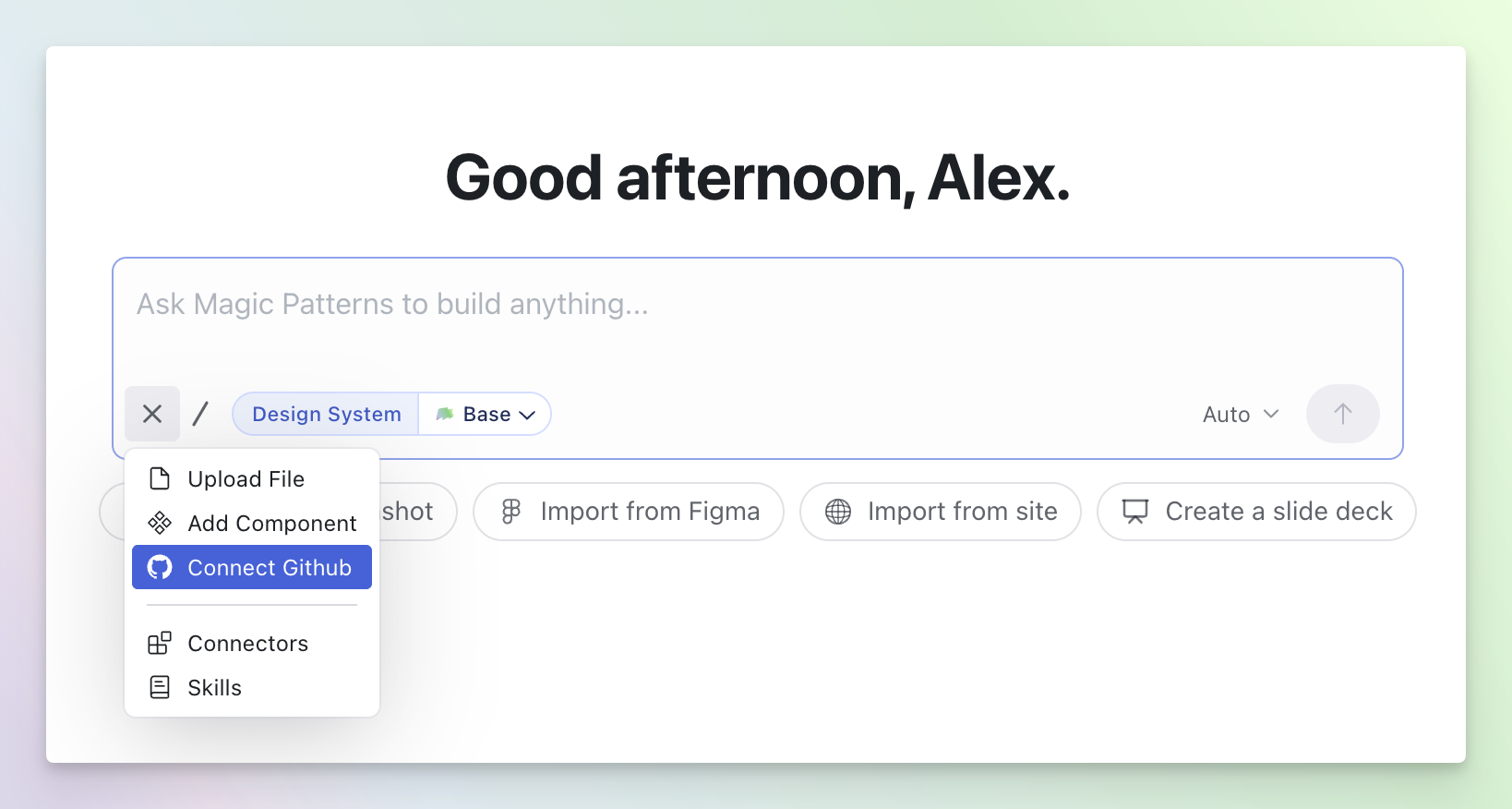
2
Pick or paste a repository
Start typing to autocomplete from the repositories Magic Patterns can see, or paste a repository URL directly: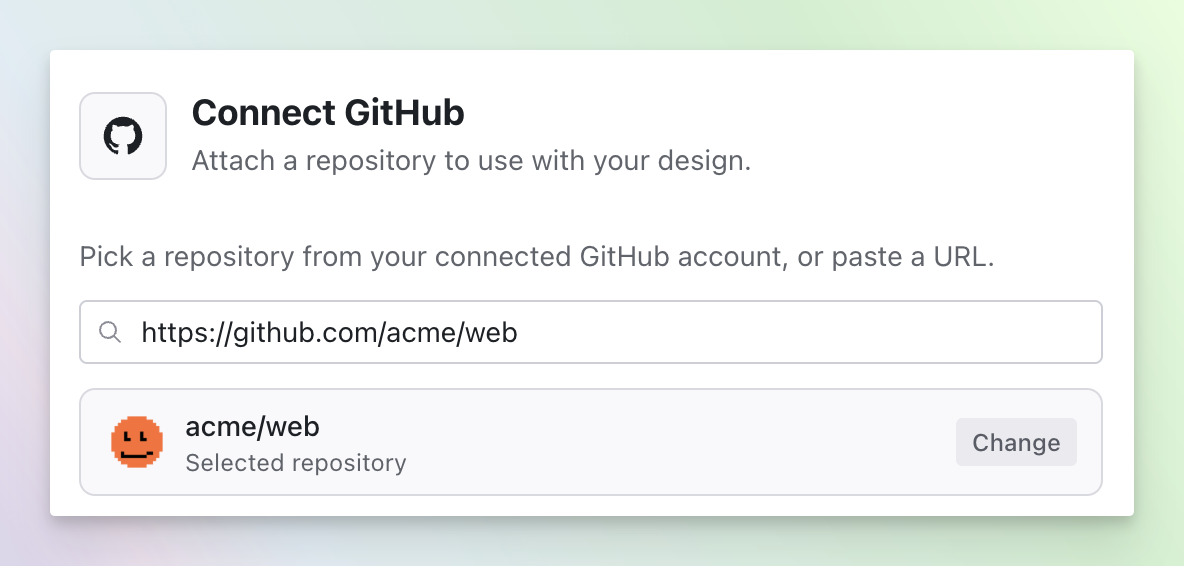
3
Choose subfolders (optional)
Once the repo resolves, browse its folders and select the subfolders you want the agent to use — for example, the folder that holds your components. For large repos, narrowing to a subfolder keeps the agent focused on the relevant code.
4
Attach
Click to attach the repository. It appears as a chip above the prompt bar, and the agent can read it while building.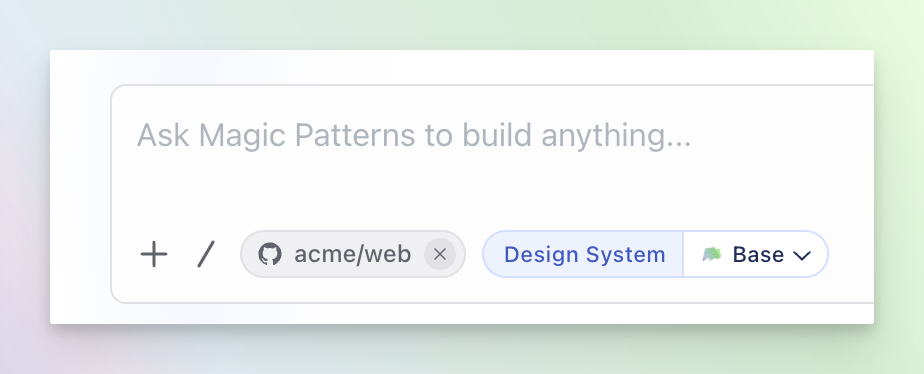
Managing attached repos
- Edit subfolders. Click a chip to change which subfolders that repository uses.
- Remove. Remove a chip to detach the repo. Recently removed repos are offered as one-click existing connection shortcuts (with their saved subfolders) so re-attaching keeps your previous selection.
If a repo shows a connection issue, either GitHub isn’t connected for your
account, or the repository was attached by someone else and you don’t have
access to read it.
What’s Next?
Design Systems
Link a repo permanently as a Design System to reuse components across designs.
Connectors
Pull context from your other tools, databases, and apps into your prompts.