


Get your share link
To collect feedback, start by clicking on the Share button in the editor navbar.1
Open Share
In the editor, click the Share button.
2
Copy the Link
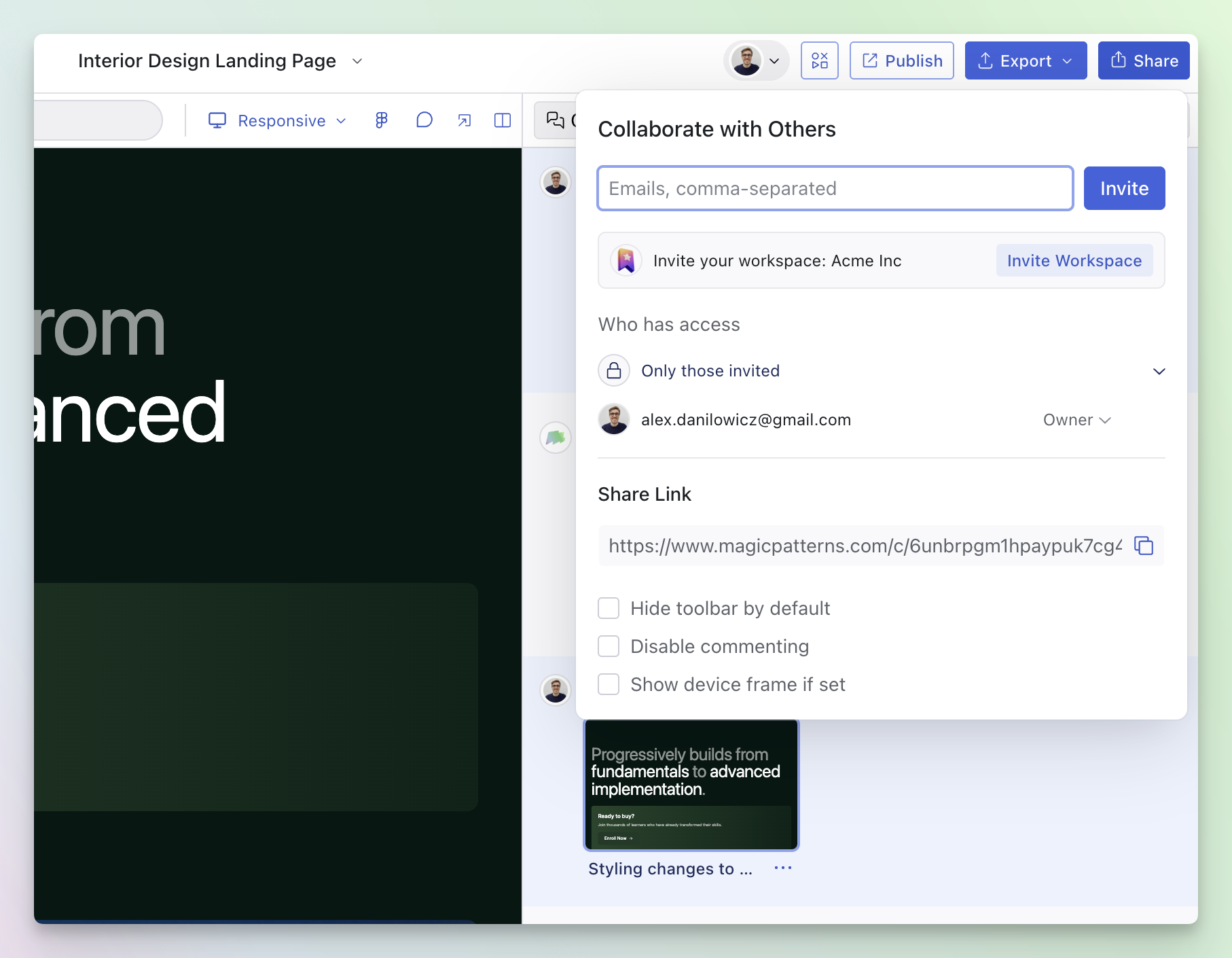
3
Send it to your teammates
Anyone with the preview link can view the design and leave comments (if they
have access).
Enter Comment Mode
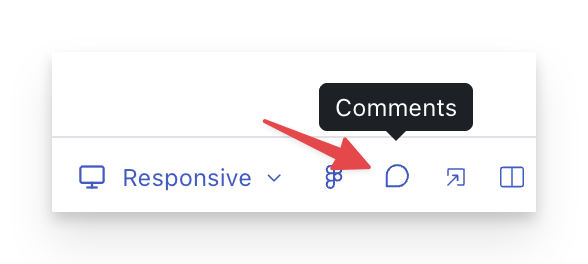
From the editor
- Click the comment icon in the editor navbar to toggle Comment Mode.
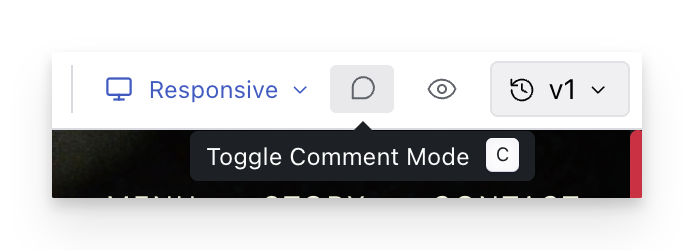
From the share link
- Open the preview link and click the comment icon to toggle Comment Mode.
Add an inline comment
Once Comment Mode is enabled:1
Click an element in the design
Tap on the specific UI element you want to comment on.
2
Write your feedback
Add context, describe the issue, and include a suggestion if you can.
3
Post the comment
Your comment appears as an indicator on the design and in the comments
panel.
Comments are tied to elements in the design. If you resize
the screen and elements move, your comments stay anchored to the right
elements.

Commmon workflows:
- Async design reviews: Share a preview link, ask reviewers to leave comments directly on the relevant UI, and iterate without long meetings.
- Collecting feedback: Product, engineering, and stakeholders can comment on exactly what they mean—even if they’re not editing the design.
- Bug or polish tracking: Use comments as a lightweight checklist while you refine the UI (resolve items as you address them).
- Version-aware feedback: Comments can be grouped by design version, so you can understand what feedback applies to which iteration.